
Context
Add extra context to your prompt
Context is optional but useful if you want to be very specific about what you want to include in the email.
- Template uses an already designed email as the design base.
- Products uses products or collections as additional context.
- Media uses selected images as additional context.
- Reviews uses customer quotes as additional context and adds a reviews section.
- Documents uses uploaded files as additional context.
Too much unrelated context can make the result less focused. Adding too much context will slow down email creation.
Template
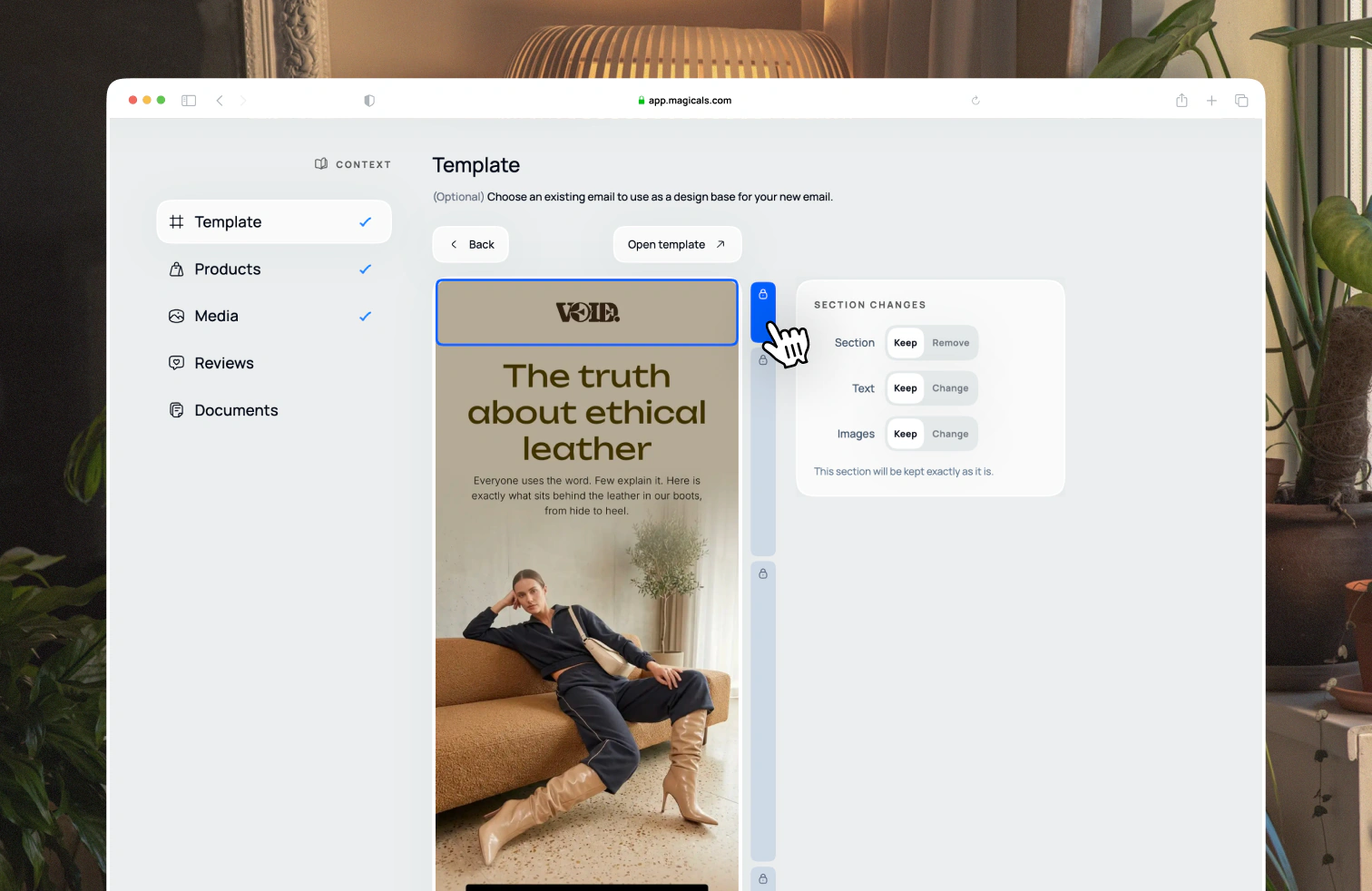
Add another email as a template for the new email. You can choose which sections you want to change and what to keep. By default it will keep everything else the same.
Products
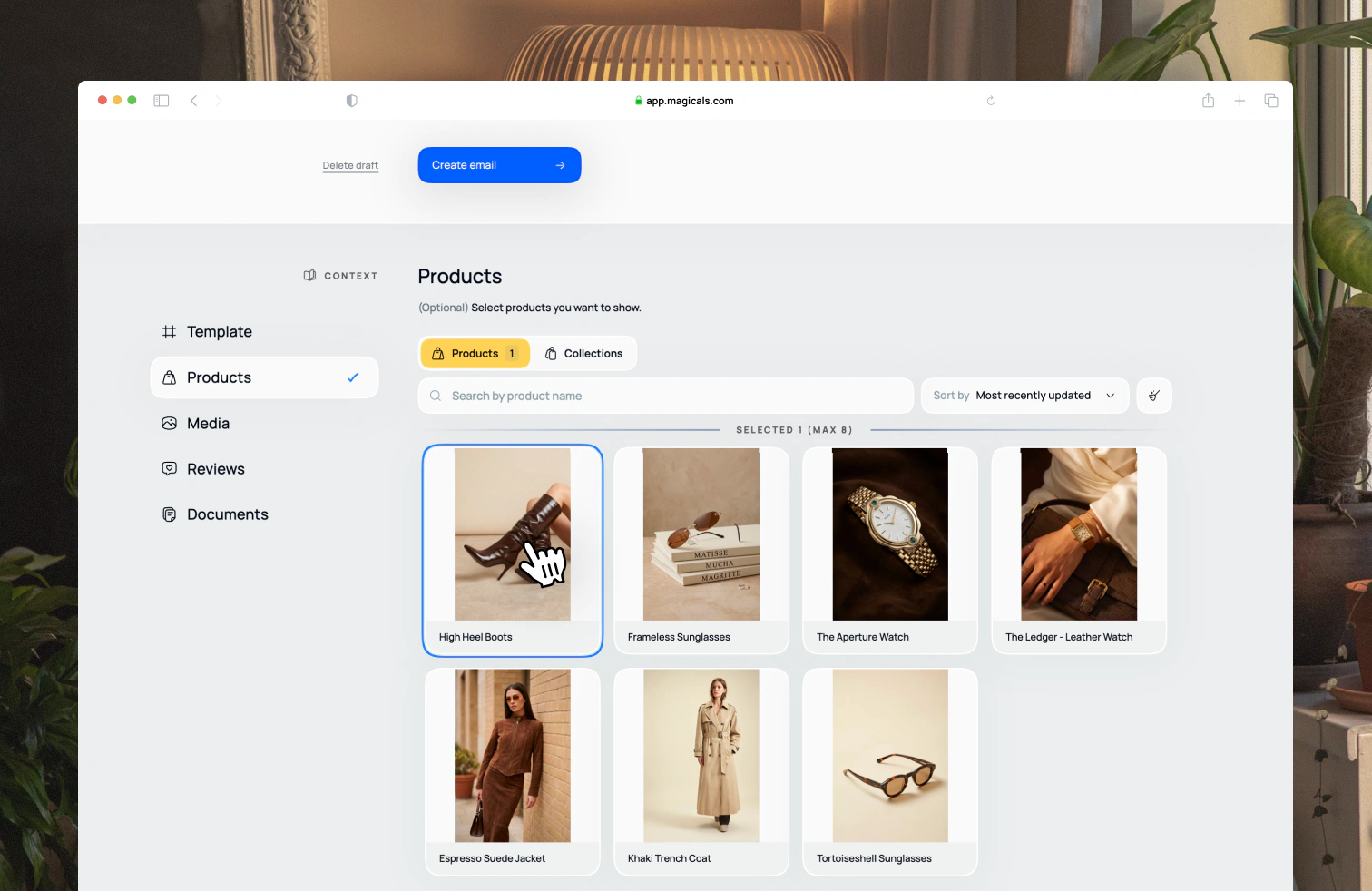
Select one or more products to include in the email. Depending on the email you are trying to create, it will use those products in different but appropriate ways. You can select individual products or collections. We recommend choosing no more than 6 products.
Media
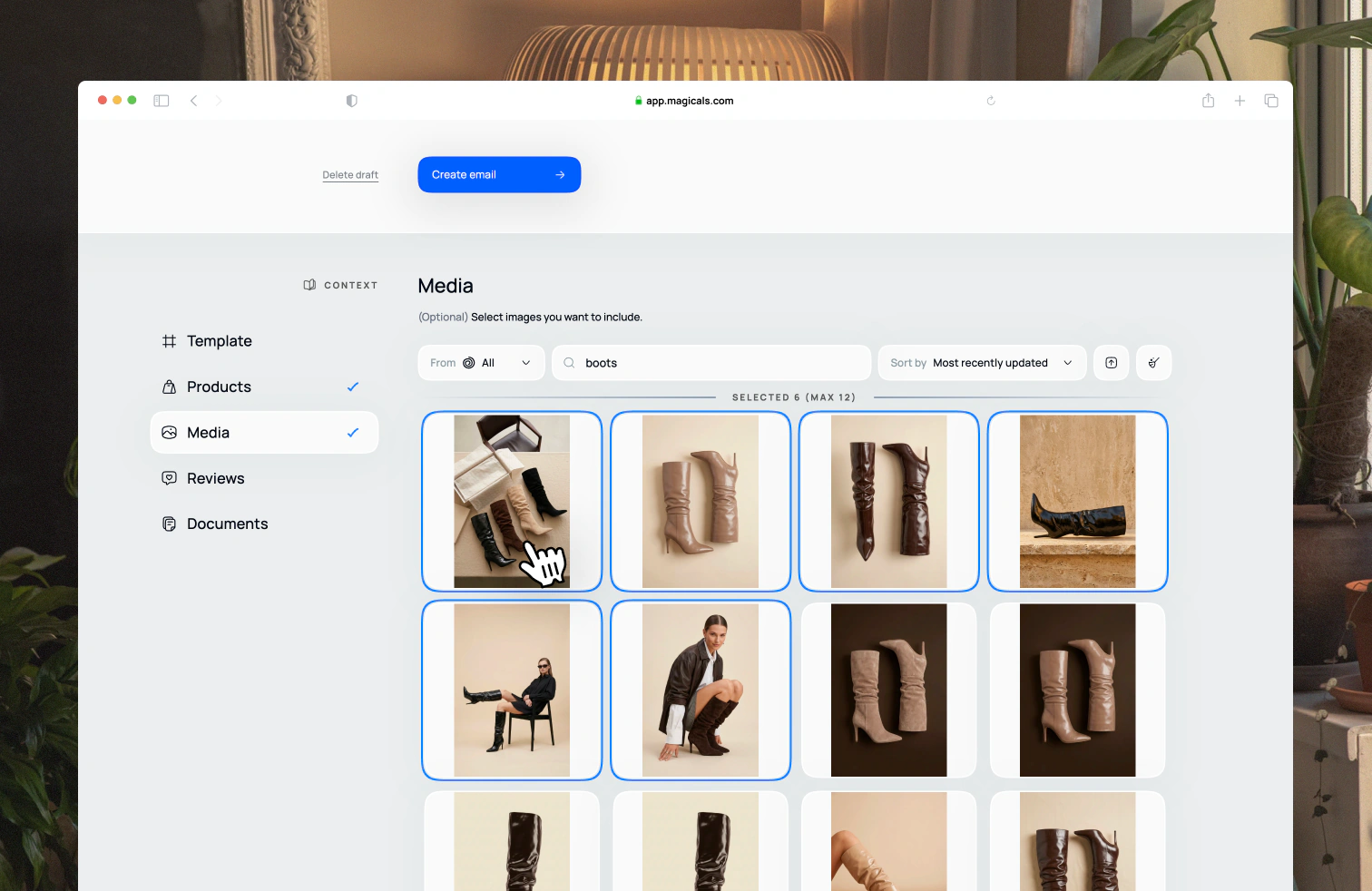
Select one or more images to include in the email. These will be used across the email, e.g. hero image and supporting imagery. Products and collections will always use their featured images.
Reviews
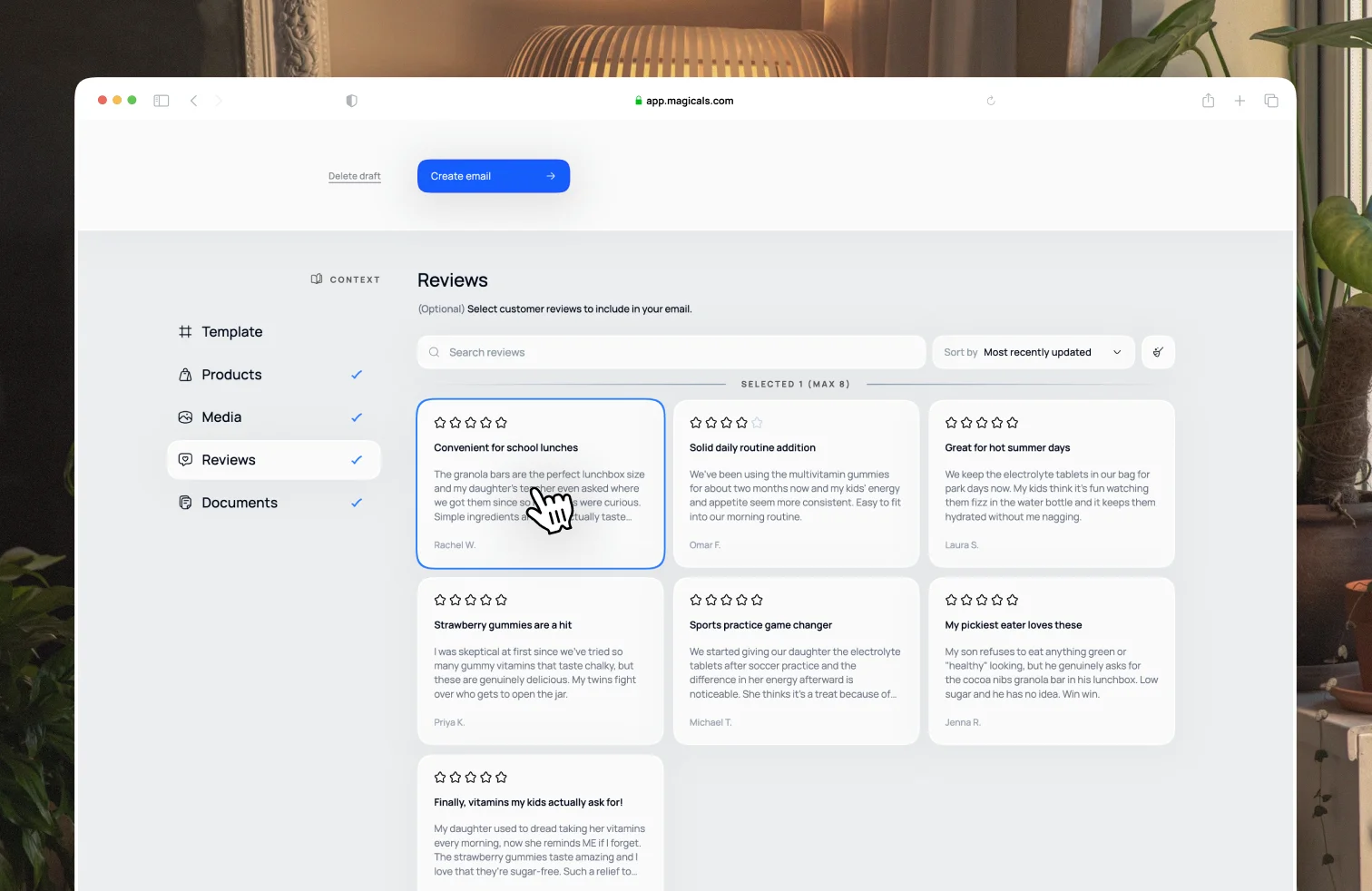
Selecting reviews will include a reviews section in the email. We suggest using no more than 3 reviews. Add reviews manually, or connect your review app to import them automatically.
Documents
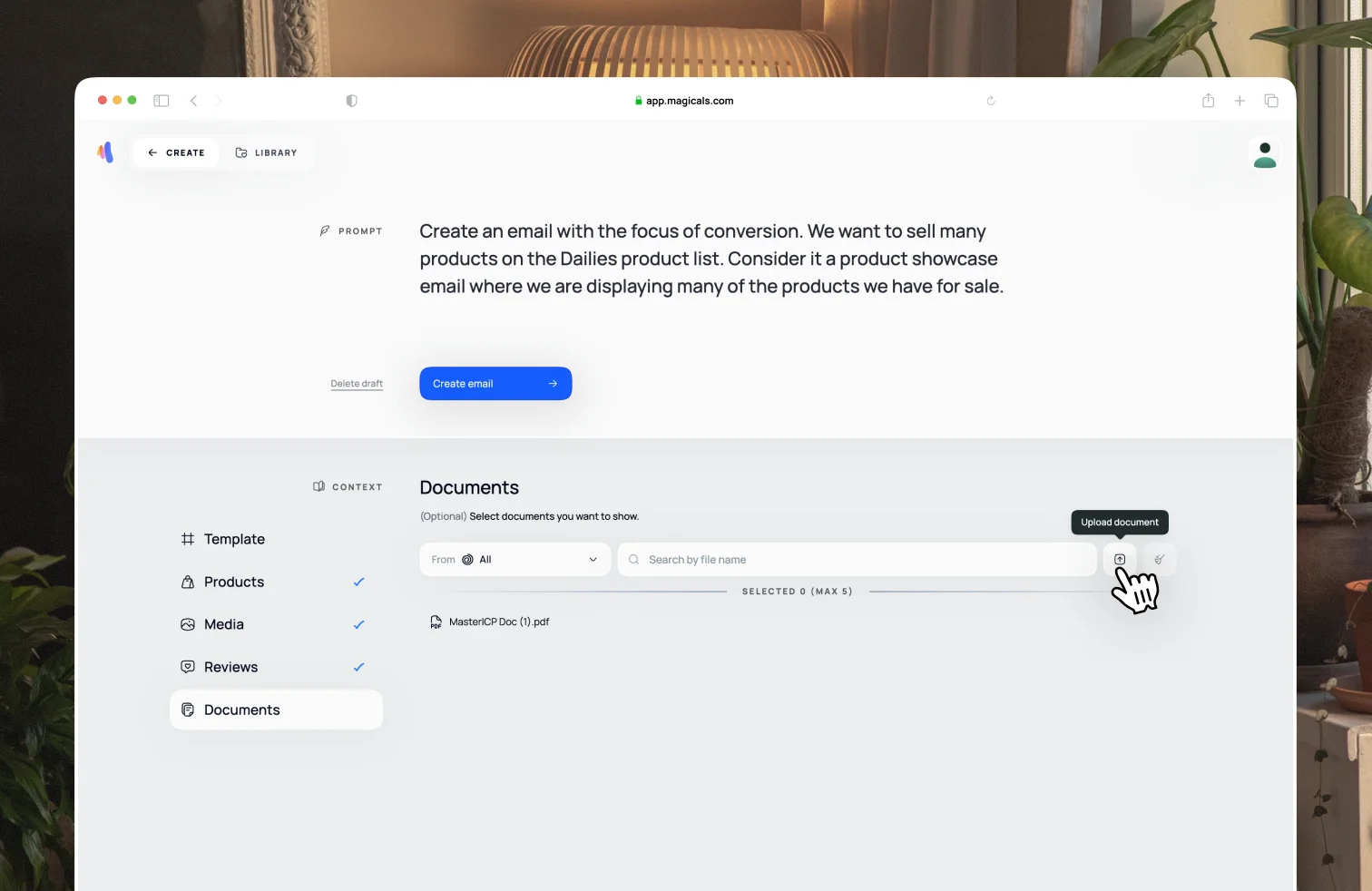
By default, any documents in your settings you've set to always use in all emails will be selected as context for the new email. Adding a document when creating a new email will use it as context for only this new email. Adding too many documents will slow down email creation.