
Editing
How to edit a generated email
The hierarchy is sections and elements. Sections can be static or dynamic. Elements are components within sections.
You can add, edit, duplicate, recreate, save, or remove sections, and you can undo and redo.
Sections
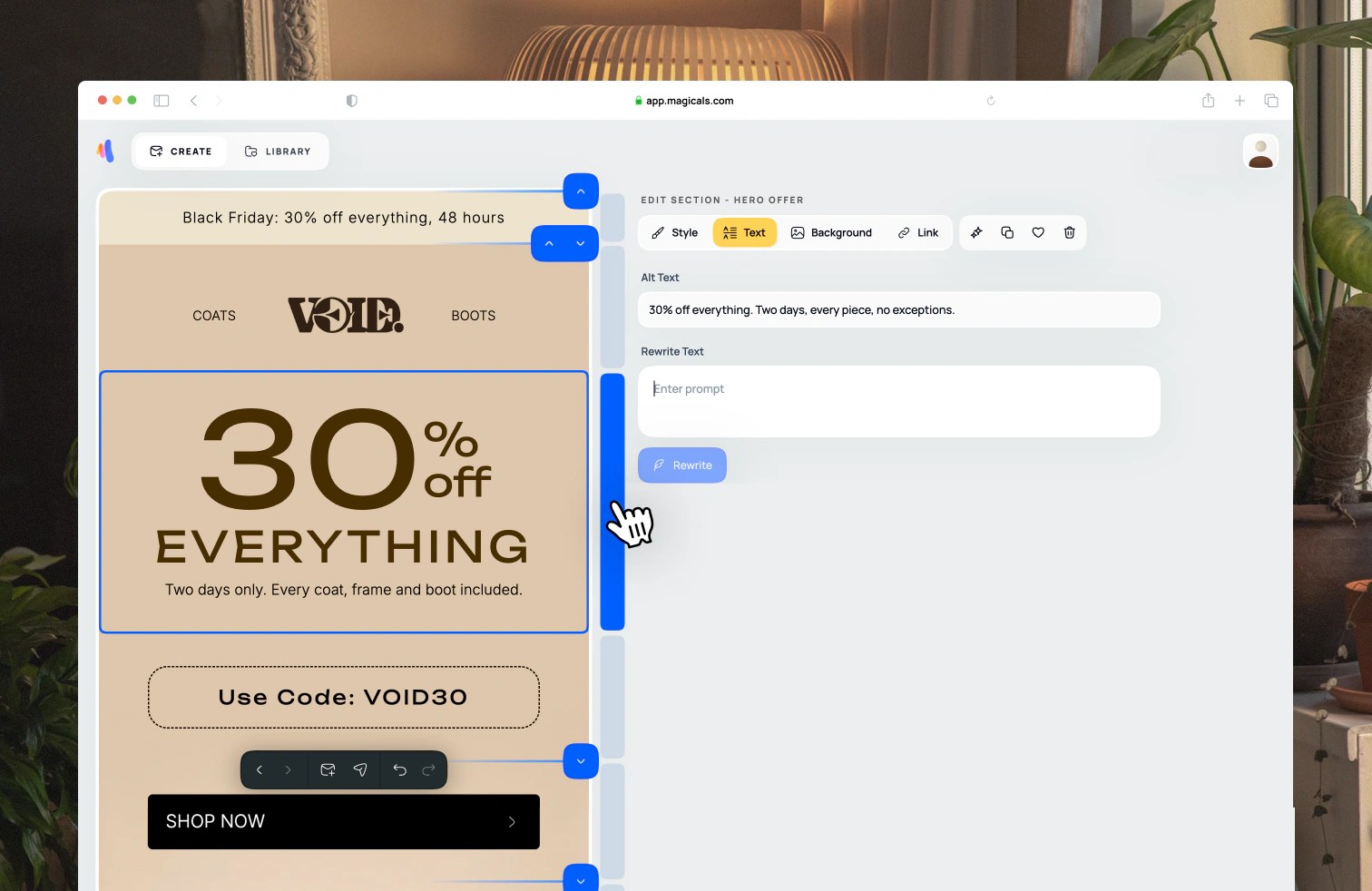
The panels beside the email preview allow you to select sections. Sections marked with a heart icon are saved in your library. Sections marked with a code icon are dynamic sections.
Selecting multiple sections
Select multiple sections at the same time by holding down the shift key and clicking on section side panels.
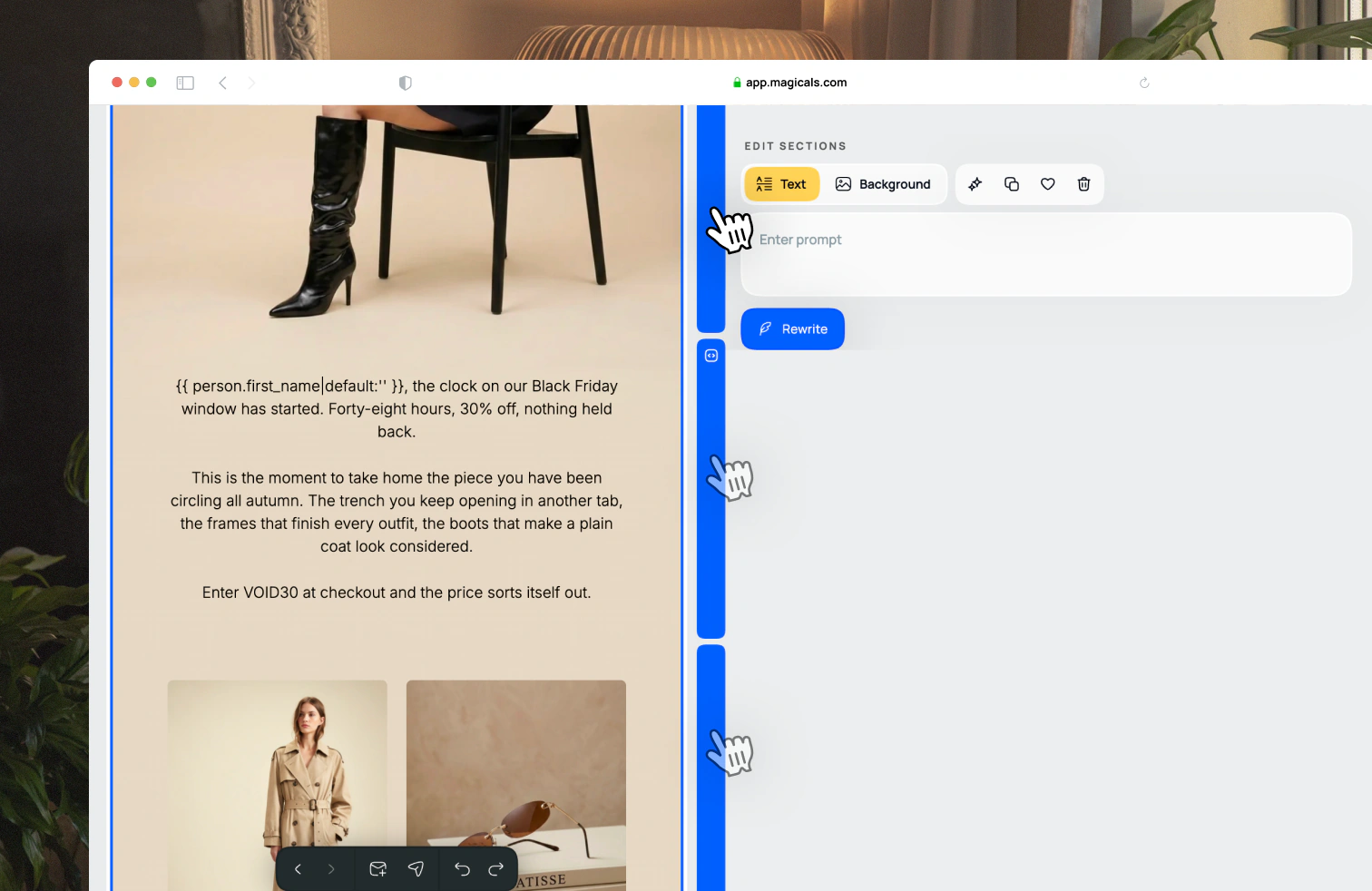
Text
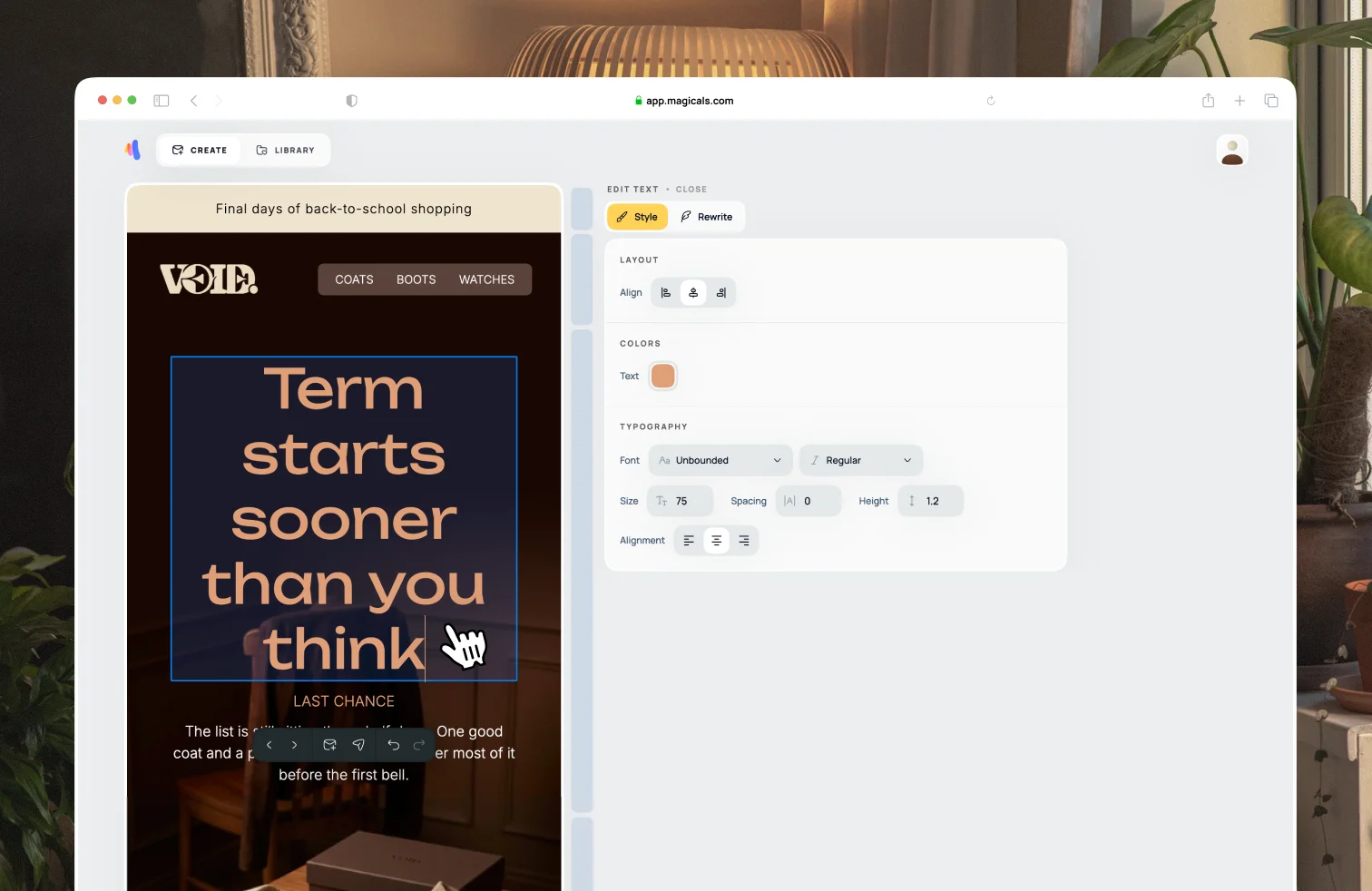
Edit text manually on the email itself, or use AI to rewrite.
Buttons
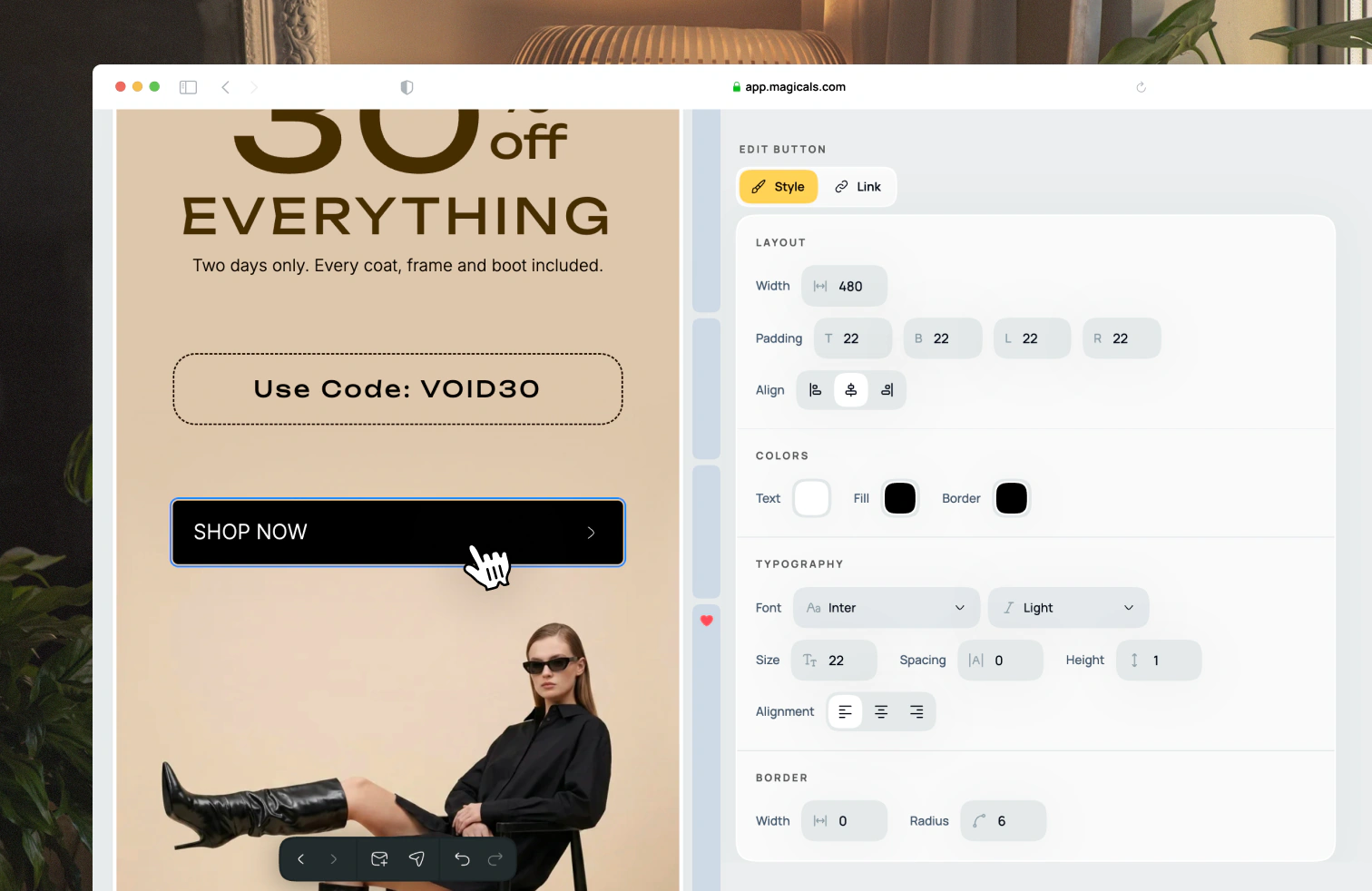
Click on a button to change its style and link.
Images
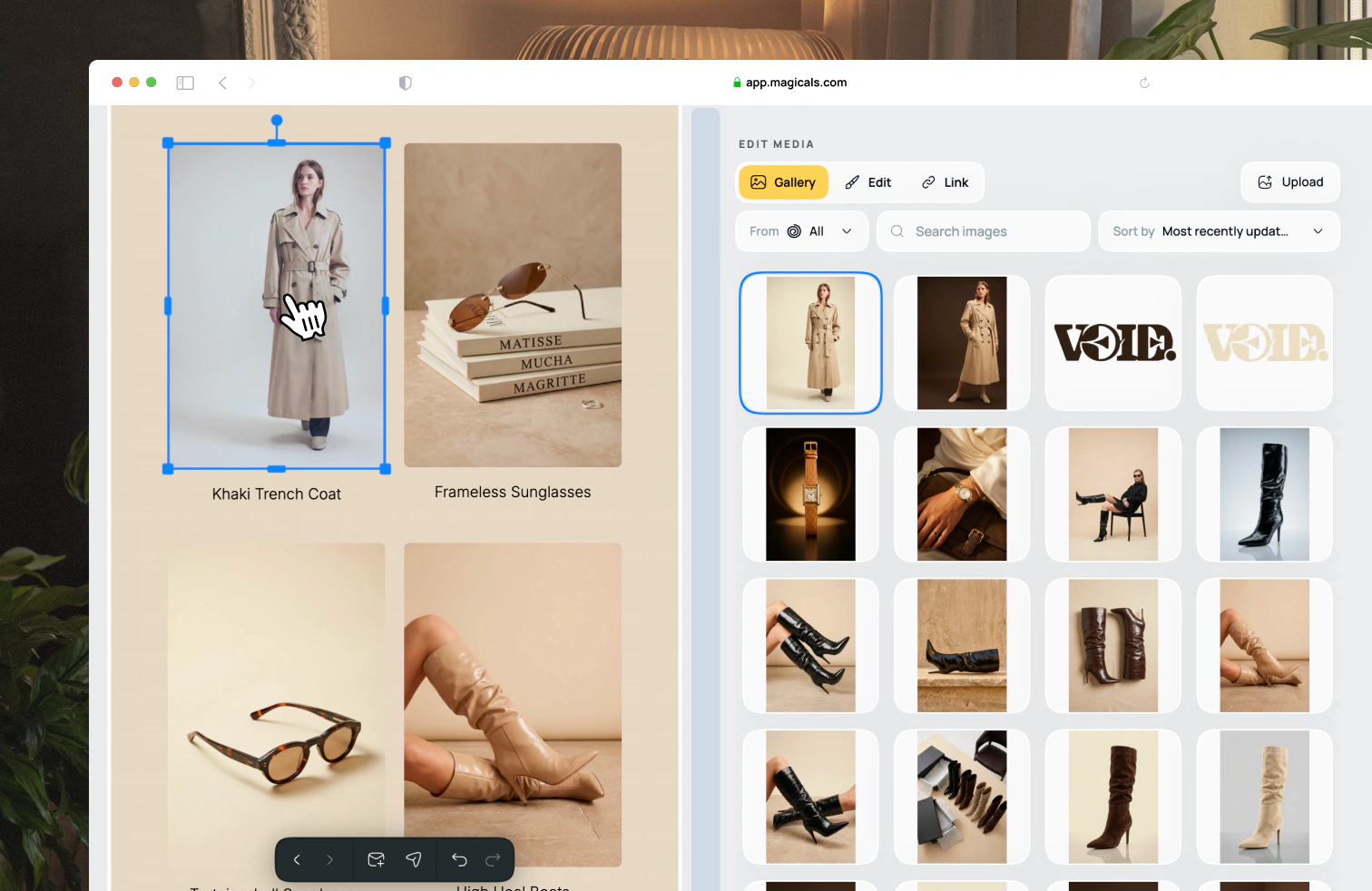
Click on any image to change it, change its border radius, or edit how it blends its background into other sections.
Blending and clipping
Your images are the most important part of the email design. Allow your images to extend beyond their size and fill in the background of the email, and you get this seamless blending effect. Where you want the blend to start and stop is controlled by the clipping property.
Products, collections and reviews
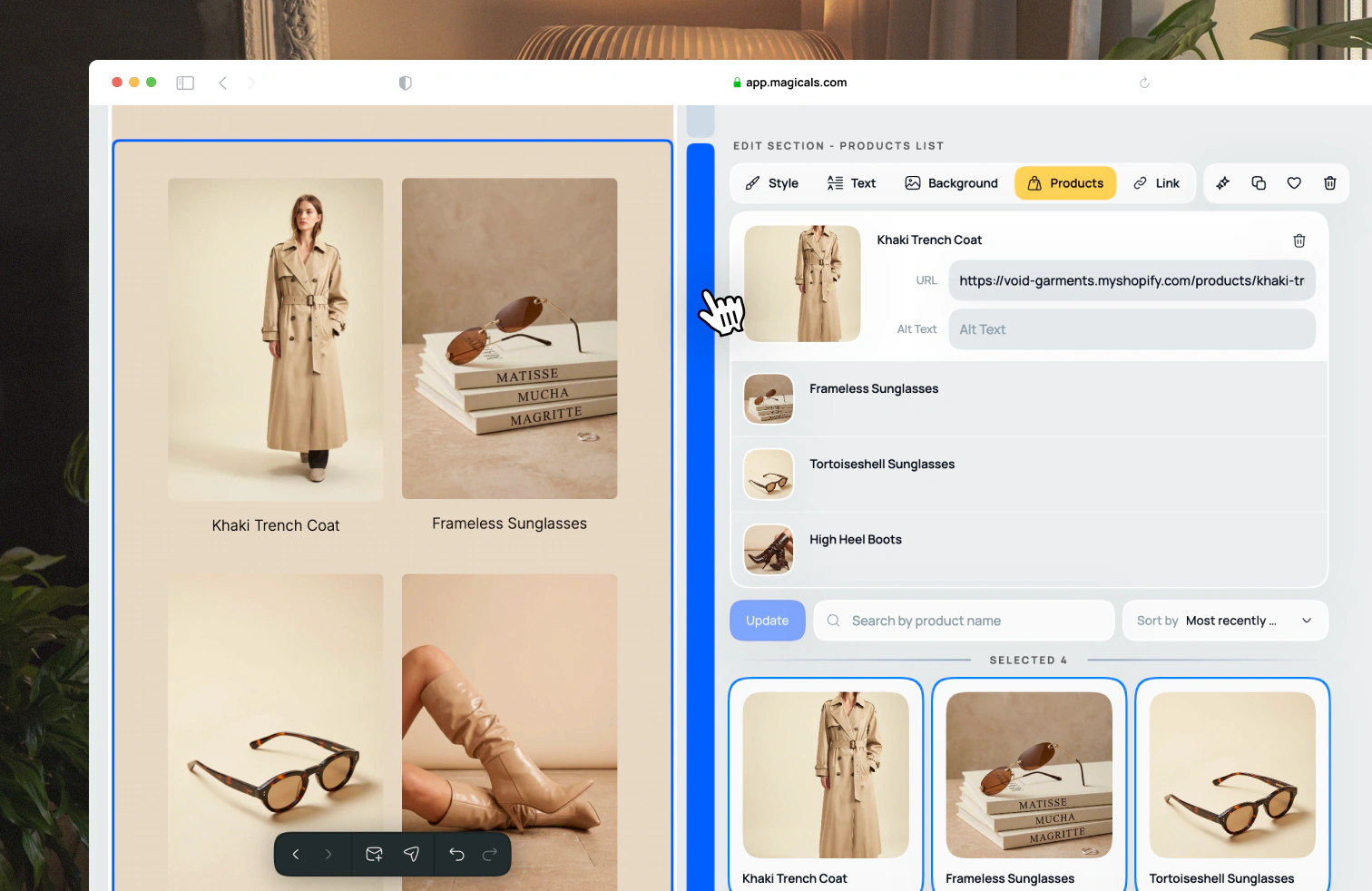
These are special sections that allow you to change the items in the list. Each item will link to its correct page. For example, each product will link to its product page.
Backgrounds
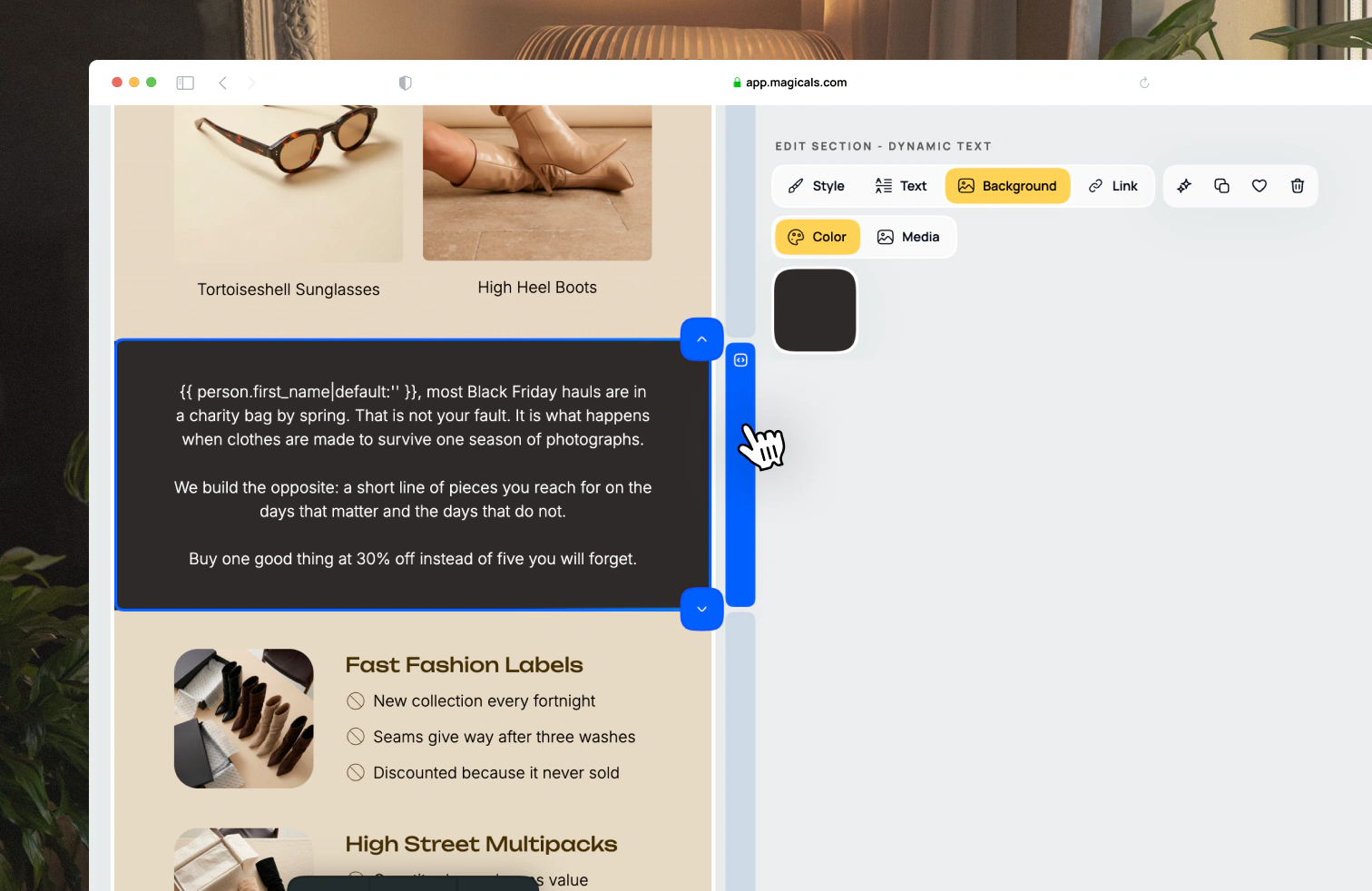
A section's background can come from two places: manually set, or a neighbouring image section has blended into the section background. Use images or solid colors for the backgrounds, and change the opacity of the background.
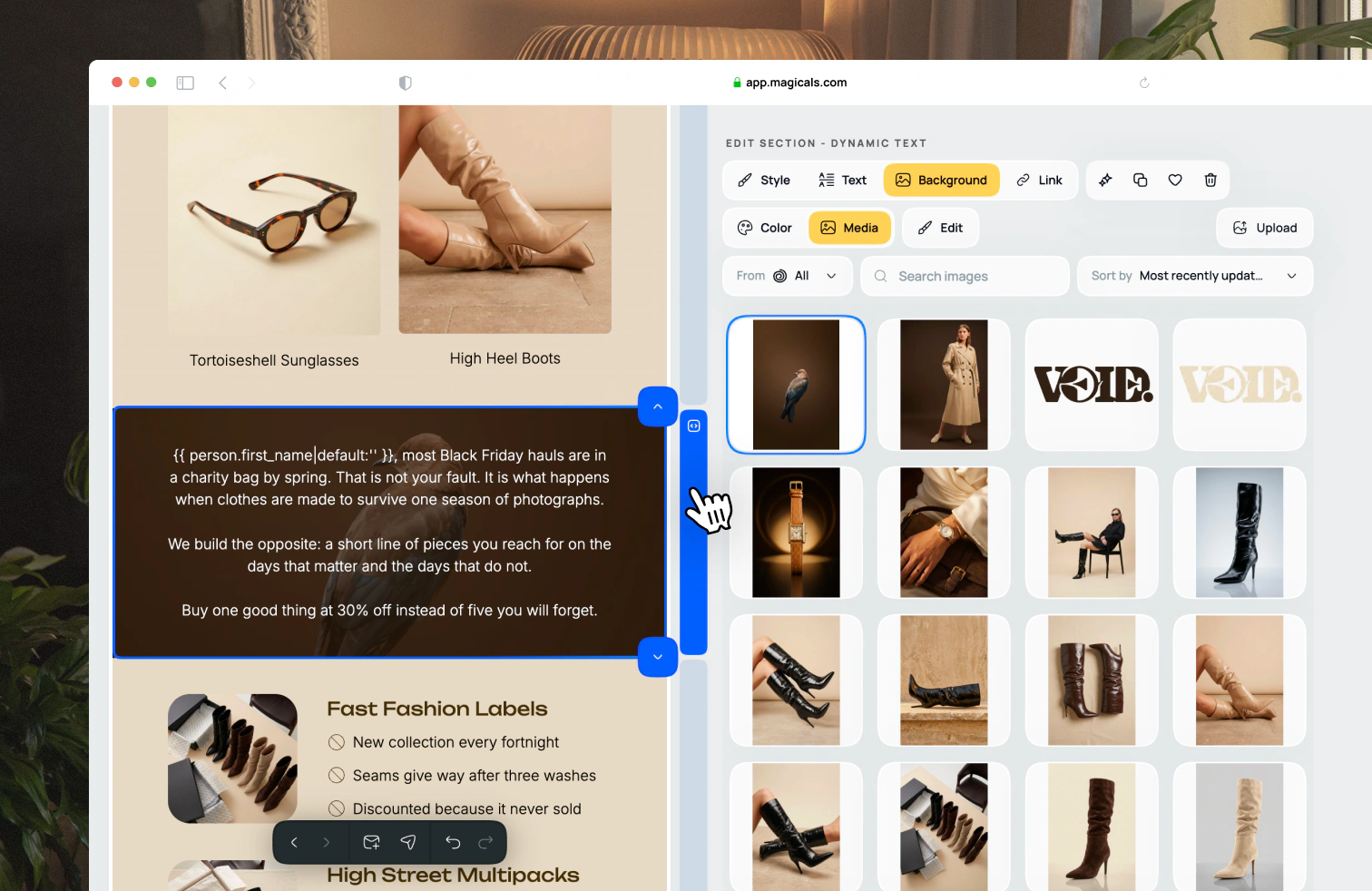
Separators
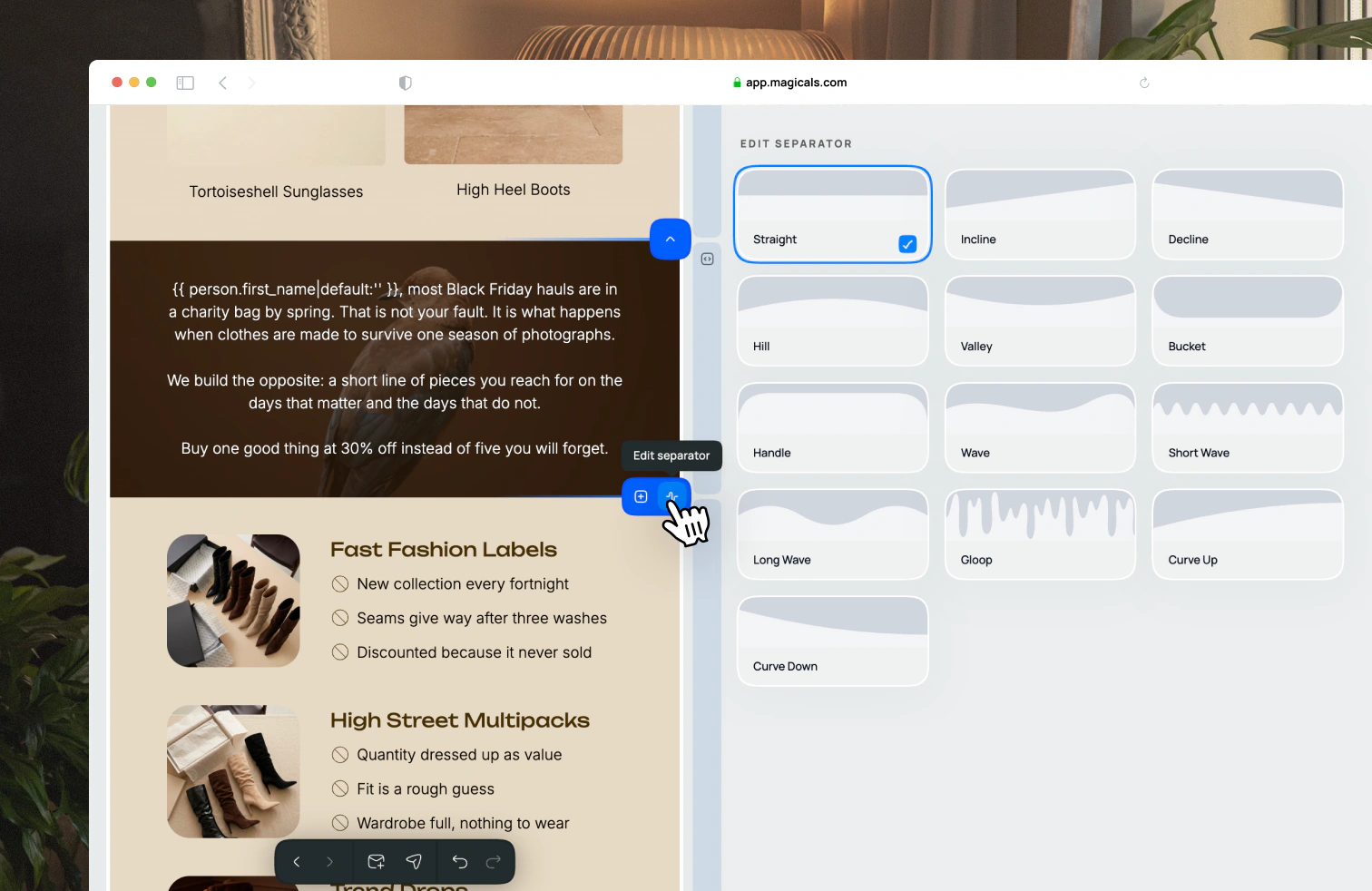
Also known as "dividers", these are where one background color ends and another begins. You can change the shape of the transition between sections.