
Skip to content
Logo

Email sender

Manage the integration with your email sender
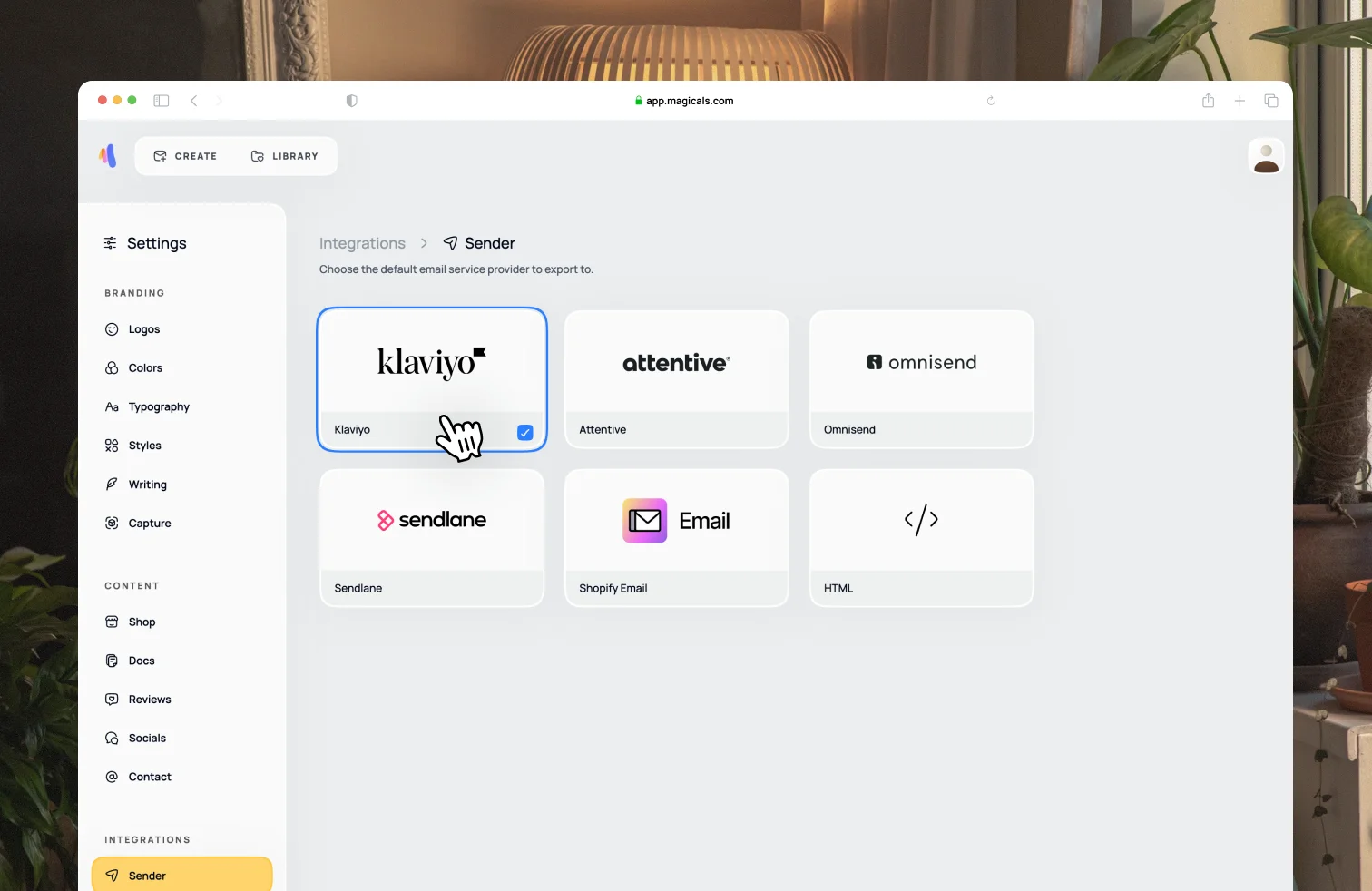
We are working on direct integrations with your favorite email service providers. In the meantime, Magicals exports optimised HTML for your ESP.

Open the email you want to export. Select the Export → Your chosen sender option from the toolbar menu at the bottom of the screen. You will be given two options: Copy code and Download file.

Click on Copy code to copy the email's HTML code to your clipboard, then paste it into a new template on your provider's platform. Download file generates a HTML file that you can use to upload on your provider's platform.

See provider specific instructions below.

Klaviyo

Go to Klaviyo and visit the Templates page under the content menu in the navigation bar on the left. On the top right click on Create → New template, paste in the HTML code you copied from Magicals, give the template a name, and click on Create template. Then when you create your flow or campaign, you can select this template to use.

Attentive

Go to Attentive and open a campaign or a journey (Attentive's name for a flow). Add an email message if you need one, then click Use HTML editor. You cannot switch between the HTML editor and the drag-and-drop editor later, so choose HTML from the start.

Paste in the HTML code you copied from Magicals, then click Preview to check the design. Click Save when you are ready.

Shopify Email

From your Shopify admin, go to Apps → Messaging (Shopify Email). Click Create campaign, then choose Code your own. Paste in the HTML code you copied from Magicals, or click Import and upload the HTML file you downloaded.

Give the campaign a subject line, choose who to send it to, then send a test before you send or schedule it.

Omnisend

Go to Omnisend and open Store settings → Saved templates. Click Import template. You can Paste in code with the HTML you copied from Magicals, or Import HTML and upload the file you downloaded.

Give the template a name, then import it. The template will appear on the Saved templates page, and you can select it when you create a campaign or automation.

Sendlane

Go to Sendlane and create a campaign or automation email. Choose the HTML builder (not the visual builder), then paste in the HTML code you copied from Magicals. HTML emails cannot be created from the templates page, so start from a campaign or automation.

Preview the email, then save it. You can save it as a template from the three-dot menu if you want to reuse it later.

HTML

If your sender is not listed above, export the email as HTML from Magicals with Export → HTML. Copy the code and paste it into your provider's HTML or custom-code editor, or download the file and upload it if they accept an .html file.

The HTML is already optimised for email clients. After you paste or upload it, send a test from your provider before you send it to customers.